

| Summary: This guide explains how to migrate from QuickBooks to Odoo, moving from standalone accounting to an ERP system where accounting, inventory, sales and purchasing all run in one place. It covers the QuickBooks to Odoo migration steps in order: a data and process audit, deciding how much history to bring over, cleaning up directories, QuickBooks to Odoo chart of accounts mapping (including taxes and payment methods), a test transfer and reconciliation, a one-month parallel period, and the final migration and shutdown of QuickBooks. During QuickBooks to Odoo data migration, cleaned directories, open documents and balances as of the transition date are transferred. Historical transactions are usually carried over as aggregate balances, and custom QuickBooks reports have to be recreated in Odoo. The guide also covers multi-system migration to Odoo, for when data is spread across accounting, inventory, CRM and an online store, and lists the most common mistakes to avoid when you migrate accounting data to Odoo, such as skipping the parallel period or shutting down QuickBooks too early. |
QuickBooks, a popular accounting software, does an excellent job of handling bookkeeping; however, inventory is managed in Excel, sales data is entered manually, and purchase data is stored in a separate system. In this situation, the accounting department must reconcile all numbers at the end of the month and check for discrepancies, while getting a single picture of the company’s financial condition is not always possible on the first try. Moreover, as the business grows and more warehouses and processes are added, this approach significantly increases the risk for errors and is time-consuming. This is why companies move from QuickBooks to Odoo, since this transition allows them to consolidate operational processes and accounting into a single system. However, it’s important to understand that migration itself requires thorough preparation. In this article, we’ll walk you through the QuickBooks to Odoo migration steps, from data auditing to the final transfer and verification of financial statements, so you clearly understand each stage and what you need to prepare for.
What Does Switching from QuickBooks to Odoo Actually Mean?
First and foremost, the transition from QuickBooks to Odoo is a fundamental business transformation, that is, a shift from isolated accounting to a comprehensive enterprise resource planning system. Under no circumstances should this process be viewed as simply replacing one program with another, since QuickBooks is an accounting system, while Odoo is an operational platform in which accounting is just one of the modules. Therefore, the migration must be viewed in a broader context than just transferring journal entries: whole processes are migrated along with the data.
Migration can encompass not only accounts and transactions, but also balances, documents, and the logic governing interactions between departments. For example, if previously a manager would record a sale in one system, a warehouse worker would update the inventory in a spreadsheet, and an accountant would manually enter the financial data into QuickBooks, then after the migration, all of these operations can be consolidated into a unified Odoo process.
Depending on the company’s needs, there are two migration scenarios:
- A complete transition with QuickBooks being phased out. In this case, access to the old system or its archive can be maintained for viewing historical records.
- A hybrid option, where accounting temporarily remains in QuickBooks while the rest of the company operates in Odoo. This approach requires clear division of responsibility for data and the synchronization of information across systems in order to avoid duplicate entries and discrepancies.
The choice of scenario depends on the complexity of accounting, the readiness of the data, and the company’s ability to adapt its workflows, since the main objective is to ensure data integrity and a controlled transition of business operations.
What Can Be Transferred and What Cannot: What You Need to Know
Directories
This includes information about products, suppliers, customers, taxes, and the chart of accounts. This data is typically transferred to Odoo after being verified and cleaned. Directories must be reconciled before import, especially if there are duplicates across different systems or if accounting rules differ.
Open documents
Unpaid invoices, open orders, balances, and other unfinished operations are carried over, so the company can continue its operations without losing up-to-date information. It’s important to understand that the method of carrying over these items depends on document types and their relationship to accounting and inventory records in Odoo.
Balances as of the transition date
This includes opening book balances, accounts receivable and accounts payable, and actual inventory balances, all of which must be reconciled as of a specific date. This data will form the basis for operations in the new system. Please note that before launch, the data is reconciled from QuickBooks and other accounting sources.
Historical transactions
This refers to historical transaction details from previous years, which are migrated selectively, most often as aggregate balances rather than on a line-by-line basis. This helps reduce the volume of data to be migrated.
Custom QuickBooks reports and settings
Generally, custom QuickBooks reports, rules, and processes need to be recreated in Odoo. This is precisely the aspect that is not transferred during migration.
It’s important to understand that not all objects are transferred automatically during migration, and the scope of work depends on the QuickBooks version, the data structure, and the settings of the target system. Of course, transferring the entire history line by line is technically possible, but in nearly all cases, the cost outweighs the benefits. Therefore, during QuickBooks to Odoo data migration, it’s crucial to determine in advance which records are necessary for operation in the new system, and which ones can simply be archived.
What Migration Involves: A Step-by-Step Process
It’s important to understand that migration is a key strategic move for a company, one that requires a clear sequence of steps. If you’re interested in how to migrate from QuickBooks to Odoo, this section will be helpful, as we break down each step in detail and explain its outcome.
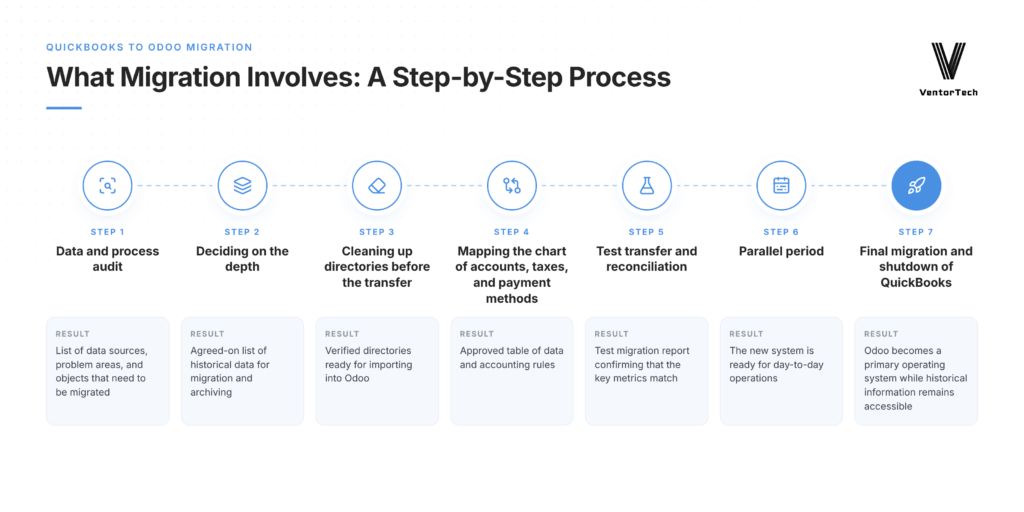
Step 1. Data and process audit
The first step of the QuickBooks to Odoo migration checklist is to determine which data is stored in QuickBooks and which is stored in CRM, Excel, and other systems. The team handling the migration analyzes integrations, documents, directories, duplicates, and dependencies between data sources. On the company’s side, the financial director, the accounting department, and employees responsible for operational processes will need to participate at this stage.
The result of a thorough analysis at this stage is a list of data sources, problem areas, and objects that need to be migrated.
Step 2. Deciding on the depth
At this stage, the accounting department determines for which period transaction details need to be recorded in the Odoo system, and which data only needs to be retained in the archive. The decision here depends on the needs of management reporting, auditing, and internal document retention requirements. It’s important to understand that while the contractor can assess the technical complexity and cost of various options, it is not within their scope of responsibility to determine the scope of historical data on behalf of the business.
As a result, this stage provides us with an agreed-on list of historical data for migration and archiving.
Step 3. Cleaning up directories before the transfer
Before importing, it’s crucial to identify duplicate suppliers, customers, and products, as well as to verify names, identifiers, and required fields. Transferring inconsistent records leads to duplicate transactions and a huge number of errors in reporting. Keep in mind that the owners of the business data within the company are responsible for its quality and accuracy.
As a result, once this step is completed correctly, you will have verified directories ready for importing into Odoo.
Step 4. Mapping the chart of accounts, taxes, and payment methods
This is the most underestimated step, yet the accuracy of financial reporting depends on it. At this stage, QuickBooks accounting categories are mapped to the Odoo chart of accounts. Special attention should be paid to tax regulations, chart of accounts, payment methods, and the presentation of accounts receivable and accounts payable. The task of the accounting department here is to verify and confirm compliance before beginning the test migration.
The result of high-quality QuickBooks to Odoo chart of accounts mapping is an approved table of data and accounting rules.
Step 5. Test transfer and reconciliation
First, the data is loaded into the test environment, and key metrics, such as accounting balances, accounts receivable and accounts payable, and inventory balances are compared. If any discrepancies arise, they must be documented, explained, and corrected before the final go-live.
Once this process is complete, we receive a test migration report confirming that the key metrics match.
Step 6. Parallel period
At this stage, both systems operate simultaneously for one full month. For those who use QuickBooks Online, you may consider the Odoo QuickBooks Online connector to synchronize data between systems, thus facilitating a seamless data exchange. Once any significant discrepancies have been resolved and the control period has been successfully closed, you can plan the final cutover. The task of the accounting department here is to review the financial statements, while the warehouse manager and the sales manager verify the corresponding transactions.
As a result, we confirm that the new system is ready for day-to-day operations.
Step 7. Final migration and shutdown of QuickBooks
Once all checks are complete, the agreed-on data is uploaded, and at the same time, balances as of the transition date are reconciled and current transactions are transferred to Odoo. It’s crucial to understand that QuickBooks is disconnected from business processes only after the transition has been approved. As for historical data, it’s stored in a format that allows records to be retrieved and verified in accordance with the company’s requirements.
As a result of this final step, Odoo becomes a primary operating system while historical information remains accessible.
When should you complete migration?
Before completely decommissioning QuickBooks, you must verify that the key metrics are in agreement, any significant discrepancies have been resolved, the accounting department has successfully closed the period in Odoo, and the required reports are being generated without manual corrections to the results. Remember that it’s not just that data has been imported, but that these criteria indicate readiness for a full transition.
Migration From Legacy ERP and In-House Systems
As a rule, migration from QuickBooks involves working with a well-known accounting data structure. At the same time, when it comes to legacy ERP to Odoo migration or transitioning from a custom-built system, an additional step will most likely be required; namely, determining exactly how information is stored and how business processes operate. If a company has been using outdated software for years and has gradually adapted it to its needs, then this step is particularly important.
The main problem is the lack of a standard export feature; after all, if the system doesn’t support a convenient way to export data, then you have to do it via an API or a database, and that’s a whole separate task. Data is often spread across several systems at once: accounting, inventory, CRM, and an online store. This scenario is called multi-system migration to Odoo, and mapping becomes significantly more complex, since you need to determine which system is the primary source for each type of data.
Incomplete documentation is another challenge that arises in such situations, since the data structure and order processing rules must be reconstructed during the audit. This is precisely why outdated system migration to Odoo requires a thorough analysis of the old system’s logic. As for the sequence of steps, it remains the same: audit, deciding on the depth, cleaning up directories, mapping, testing, parallel period, and final launch. However, each stage may require more preparatory work, and you need to be ready for this.
How Long It Takes and What Factors Determine the Duration
It’s only possible to estimate the migration timeline and the true cost of Odoo ERP after an audit, rather than based on a generic template. Data quality is a key factor that affects the process’s duration; if directories contain duplicates and information is stored in different formats, additional data cleansing will be required before the migration.
The number of source systems also affects the migration timeline. If a company uses only QuickBooks, the preparation will be simpler than if it also uses CRM or inventory spreadsheets. The more years of transaction history you decide to bring over, the longer mapping and reconciliation take. When discussing the terms of transitioning to Odoo using Odoo migration services, it’s also important to not underestimate the importance of the accounting department’s involvement, as delays in agreeing on the chart of accounts, taxes, and accounting rules can significantly hold up subsequent stages. The parallel period cannot be shortened: it lasts at least one full closed month.
Common Mistakes You Should Be Aware of
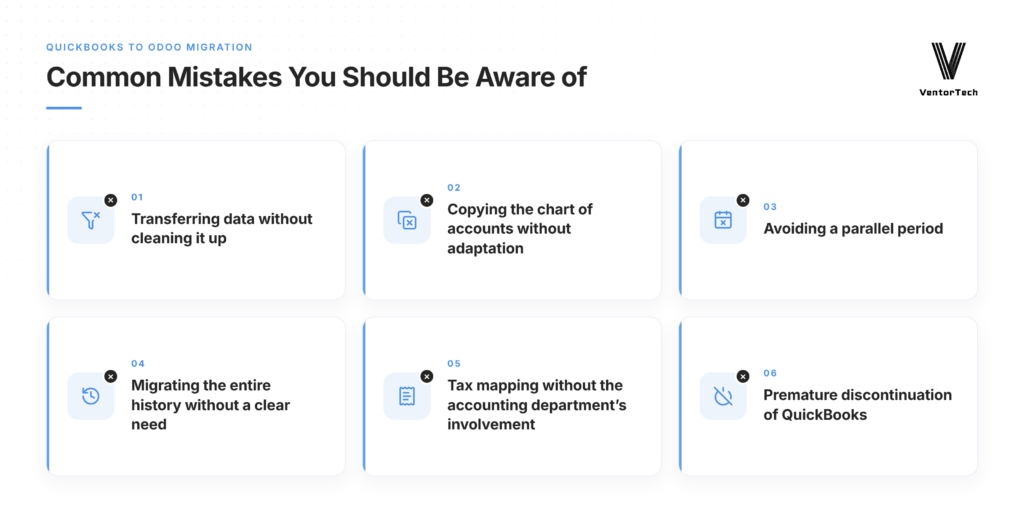
Even a carefully planned migration can be delayed if important details are overlooked. Here are some common mistakes that prevent you from achieving the desired result:
- Transferring data without cleaning it up. The accounting structure of QuickBooks doesn’t always match Odoo’s settings, and duplicate data and unnecessary information are carried over to the new system, slowing down its setup.
- Copying the chart of accounts without adaptation. Before the migration, you need to align the accounts and accounting rules with Odoo’s logic.
- Avoiding a parallel period. If you don’t compare the results from both systems, discrepancies may only come to light after the financial close, at which point correcting them is more difficult and more expensive.
- Migrating the entire history without a clear need. The level of detail accumulated over many years increases the amount of work involved in migration and verification and further complicates the process.
- Tax mapping without the accounting department’s involvement. A technical contractor can set up the data transfer, but it’s the accounting department’s responsibility to verify regulatory compliance and ensure the correct recording of transactions.
- Premature discontinuation of QuickBooks. Don’t stop using the old system until the company has verified the data, resolved discrepancies, and closed the first reporting period in Odoo.
FAQ
How long does QuickBooks to Odoo migration take?
The exact timeline for the migration depends on the size of the business, the complexity of the company’s structure, and the amount and quality of data to be migrated. In any scenario, the parallel period takes at least one full closed month.
Can I migrate all my QuickBooks history to Odoo?
Technically, this is possible; however, fully importing historical transactions spanning many years is a complex process, so it’s best to keep access to the historical export separate and set up the balances in Odoo as of the start date.
What happens to my chart of accounts?
It is mapped, not copied: QuickBooks accounts are matched to the Odoo chart of accounts, taxes and payment methods, and your accounting team approves the mapping before the test migration.
Do I need to stop working during migration?
No, you won’t need to stop working, since the transition to the new Odoo system is carried out in parallel with current processes to minimize downtime, and the final data transfer takes place at night or on weekends.
Can Odoo replace QuickBooks completely?
Yes. Odoo covers accounting and also inventory, sales and purchasing, so in most cases QuickBooks can be fully retired after the migration.
Final Thoughts
If you want to migrate accounting data to Odoo, this requires not only a technical data transfer but also verifying information, preparing accounting processes, and aligning operating procedures with the new system. The better a business prepares for the migration with Odoo migration services, the more accurately the team will be able to assess the scope of work, timelines, and potential risks. To ensure that your discussion with the contractor is as informative as possible, prepare information in advance about the source systems, the accounting department’s decision regarding the depth of historical data, and the export of reference files to assess the scope of data cleanup, since without this information, any estimate of the timeline will be approximate. Prepare the source data and fill out the estimate request form to determine the scope of work and plan your company’s Odoo migration, taking into account the specific needs of your business.
Thinking about migration from QuickBooks to Odoo? We can help you!
Recommended articles:
- Successfully Migrating from QuickBooks to Odoo ERP: Key Insights and Best Practices
- Why Odoo Works for Thousands but Failed for You? The Hidden Truth Behind Odoo Complaints
- How to Calculate Odoo Workers for Demanding Systems
- Odoo Implementation Steps
- Odoo Access Rights Structure
- AI Order Processing in Odoo
- Odoo EDI Integration
- Key Performance Indicators (KPIs) and their Role in Successful ERP Implementation
- 10 most common questions to the official Odoo partner

----------------------------------------------------------------------
Education: Bachelor's degree.
----------------------------------------------------------------------
Experience:
Marketing manager
VentorTech
----------------------------------------------------------------------
Current position: Marketing manager VentorTech
----------------------------------------------------------------------
B2B Marketing
Google Tag Manager and GA


0 Comments